Purchase Details / App Store Facts
Client Purchase ≠ Service Plan
You’re purchasing the Shadowrocket client. Get subscriptions and nodes from your service provider. This site does not provide, sell, or recommend nodes or subscription services.
Check the Developer, Icon, and App ID Together
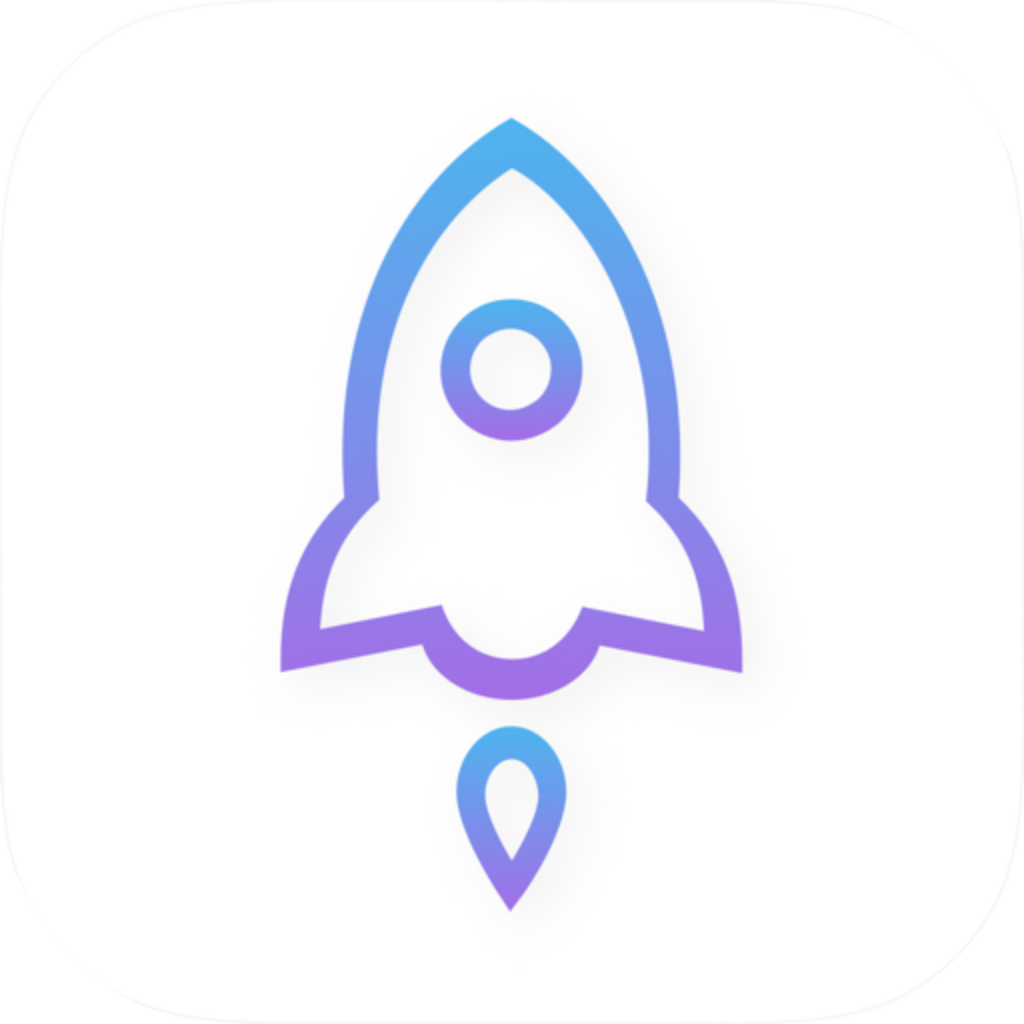
On the App Store product page, check that the developer is Shadow Launch Technology Limited, compare the app with the official icon shown here, and confirm that the product page URL contains app ID 932747118. The icon should have a white background with a blue-purple outline, and the app name should be Shadowrocket. A similar name or search-result position is not enough: open the product page, verify the full details, and then purchase.
The app ID identifies the specific product in the store, the developer name confirms who published it, and the icon provides another way to identify it. All three should match. If any detail differs, stop before purchasing and return to the app access guide to verify the link. This is the official Shadowrocket website and user guide; verify the product against information on its App Store page, not a rating or ranking.
What the One-Time Purchase Covers
Shadowrocket is a closed-source commercial app available as a one-time purchase on the App Store. The U.S. reference price is $2.99; other storefronts show local currency. Check the App Store page for actual pricing and purchase availability. Your app purchase record and your subscription with a service provider are separate. Buying the client does not provide a server address, authentication details, or a subscription URL.
To use the same purchase account on iPhone and iPad, first check your purchase history and the store’s terms to see whether another purchase is needed. Check the App Store page and your account settings to see whether Family Sharing is available and which members and devices it covers. A one-time payment for the client is separate from the validity period of a service-provider subscription.
App Store Availability and Account Region
If you can’t find the app, first check the spelling, the account currently signed in for purchases, and its App Store country or region. Then see whether the product page opens. App availability varies by storefront, and your device language does not indicate which storefront you’re using. Check your region, payment method, and account status in your account settings; don’t infer them from the language displayed on the page.
If the product page says the app can’t be purchased or isn’t compatible with your device, start with that message and check the system requirements, account restrictions, and payment status. Always refer to the App Store page for system requirements. For details about storefront regions and the purchase process, see the App Store Access Guide, which explains what to check at each step.
Restore Purchases, Update the App, and Back Up Configurations
When switching devices or reinstalling, sign in with the original purchase account and find Shadowrocket in your App Store purchase history. Check that the app ID matches. App updates come through the App Store; check the store for available updates and automatic update settings. Whether an update is available depends on the store record on your device, not static information on a website.
Restoring a purchase helps you get the client again; restoring a configuration helps you recover your setup data. Before switching devices, check your iCloud sync status, configuration file backups, and saved subscription URL. After restoring, check the node list, selected configuration, and Global Routing before testing the connection. Store backups containing sensitive information securely. Don’t post full subscription URLs or authentication fields in public support requests.